01
Describe.
Start with what you want to build.
Give Forge Code the goal and constraints. It translates your request into requirements and a plan.
From the first idea to the code that runs it.
An autonomous workspace for building software,
powered by Meta Muse Spark.
02 / THE PROCESS
A connected workflow from what you have in mind to what you can run, inspect, and improve.
Start with what you want to build.
Give Forge Code the goal and constraints. It translates your request into requirements and a plan.
Let the work move forward.
Forge Code coordinates agents to write code and run commands, with files and execution visible in your workspace.
Go beyond “it should work.”
Inspect changes, run checks, and review the evidence. See what passed and what still needs attention.
03 / BUILT TO BUILD
The autonomy to make progress.
The workspace to stay involved.
Move from a request to an implementation. Forge Code plans the work, edits files, executes commands, and works through failures.
From intent to implementationFollow the conversation, open the code, and inspect terminal output. The work and the tools to understand it live together.
Context stays close to the codeGive specialized agents bounded tasks. Planning, implementation, testing, and review become parts of one coordinated workflow.
Specialized work. Shared direction.04 / IN PRACTICE
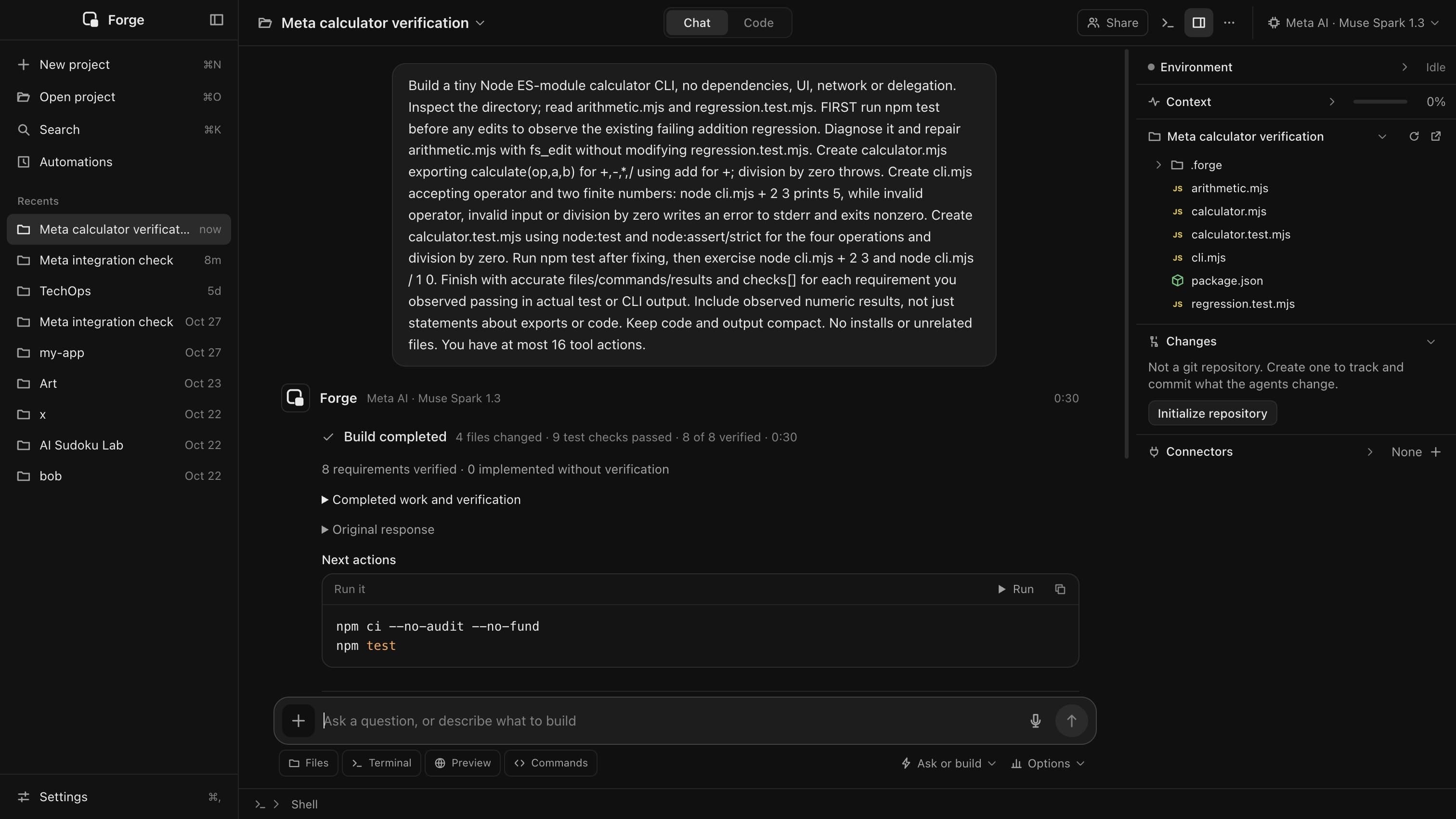
A recorded Muse Spark build, then its code
and tests in Forge Code’s editor and terminal.
05 / DOWNLOAD
This early build is not notarized by Apple yet, so the first launch is blocked. The warning only has a Done button; the way past it is in System Settings. You only need to do this once.
No Open Anyway button? It only appears for a short while after a blocked launch, so repeat step 1 and go straight to Settings. Or paste this into Terminal, press Return, and open Forge Code again:
xattr -dr com.apple.quarantine "/Applications/Forge Code.app"This removes macOS’s “downloaded from the internet” flag from Forge Code only.
Forge Code. Build beyond the prompt.